.png?width=200&height=80&name=4%20Color_Transparent_Horizontal_Canal%20Logo%20(1).png)
Overview
This article provides step-by-step instructions for rescinding a policy cancellation in PolicyCenter. It explains how to access the cancellation rescission option, initiate the process, and complete the rescission.
There are two ways to initiate a cancellation rescission from the Policy Summary screen:
- Using the Actions Menu: Select Actions → Rescind Cancellation.
- Using New Transaction: Select New Transaction → Rescind Cancellation.
Both options lead to the same cancellation transaction screen. You only need to use one of these options before proceeding with the remaining rescission steps.
Purpose
To guide users through the process of rescinding a policy cancellation in PolicyCenter, ensuring the correct transaction is selected and the rescission is completed using the appropriate steps.
Important Information
- All reinstatement requests must be sent to the Canal Cancellations team for review.
- There are two alternative ways to initiate a cancellation rescission. Only one method is required.
- Before proceeding, ensure you are working with the correct policy and cancellation transaction.
Steps to Rescind a Cancellation
Step 1: Open the Policy Summary
Navigate to PolicyCenter and open the Policy Summary screen.
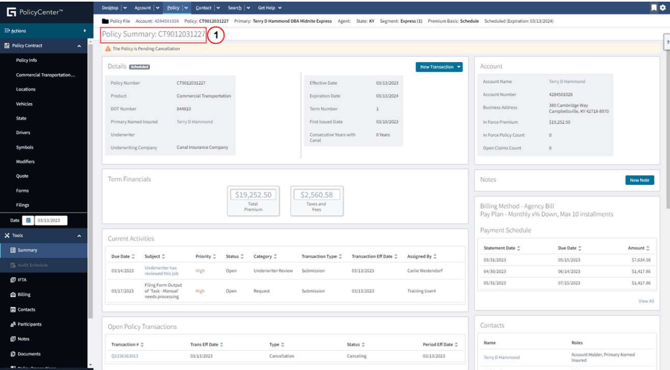
There are two ways to Rescind a Cancellation from Policy Summary Screen. One way is from Actions Menu.
Step 2: Open the Actions Menu
From the Policy Summary screen, click Actions to display the available policy actions.
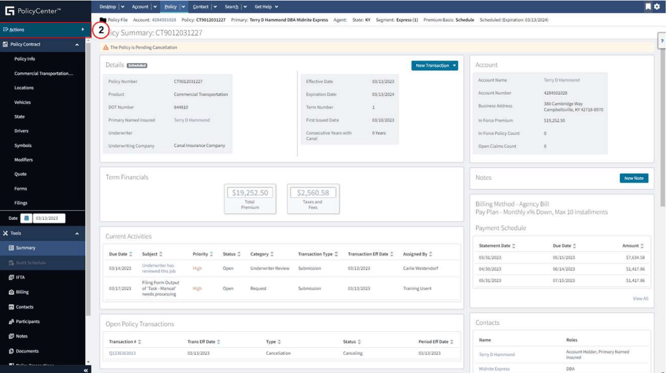
Step 3: Select Rescind Cancellation
From the Actions dropdown menu, select Rescind Cancellation to initiate the rescission process.
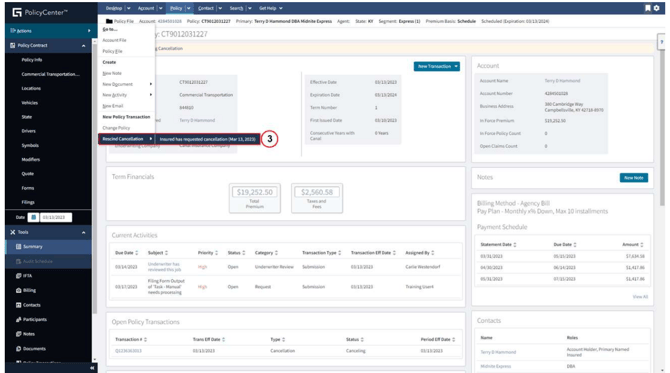
Alternative option: You can also initiate the rescission using New Transaction, as shown in Steps 4–5. If you have already selected Rescind Cancellation from the Actions menu, skip to Step 6.
Step 4: Open New Transaction
From the Policy Summary screen, click New Transaction to display the available transaction options.
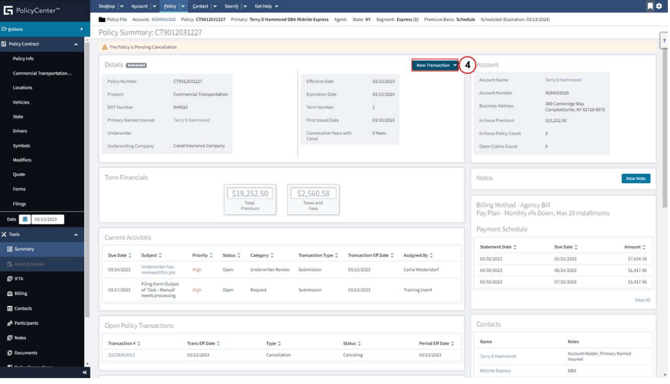
Note: This is an alternative to using the Actions menu in Steps 2–3. You do not need to complete both options.
Step 5: Select Rescind Cancellation
From the New Transaction dropdown menu, select Rescind Cancellation to initiate the rescission process.
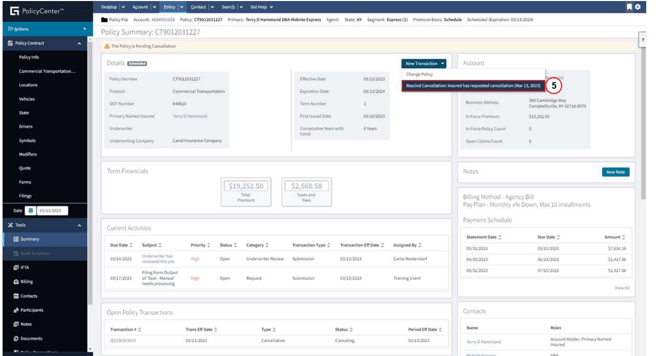
Both initiation options lead to the cancellation transaction screen. Continue with Step 6.
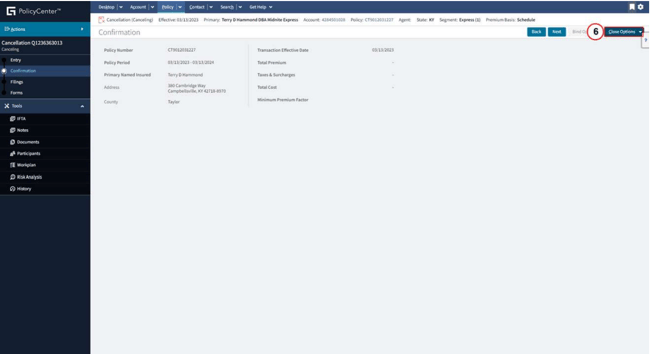
Step 6: Open Close Options
On the cancellation transaction screen, click Close Options to display the available transaction actions.
Step 7: Select Rescind Cancellation
From the Close Options dropdown menu, select Rescind Cancellation to complete the rescission process.
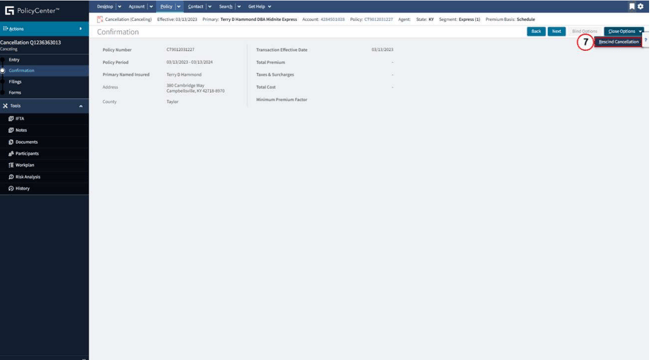
This completes the cancellation rescission procedure.